━━ FIELD NOTES / CHANGELOG

What shipped.

New on your screen. Better on the road.
Explore the changes, one feature at a time.

Latest release

The road, narrated.

Spoken turns, clearer routes, plate readers and feedback from the car. Sync your Tesla’s destination in one tap, see police lights on the road, and get traffic reports that tell the truth. All of today’s changes, in one place. Free Premium runs to 30 September.

Navigation

Alpha

Confetti when you arrive

A short confetti burst marks the end of your drive. Arrival confetti is on by default for Premium users. Turn it off in Settings → Advanced; an existing Off choice stays off. It plays once per trip and respects reduced motion.

Arrival confetti on the simulated Paris drive. 8-second demo; the feature is live. Open video ↗

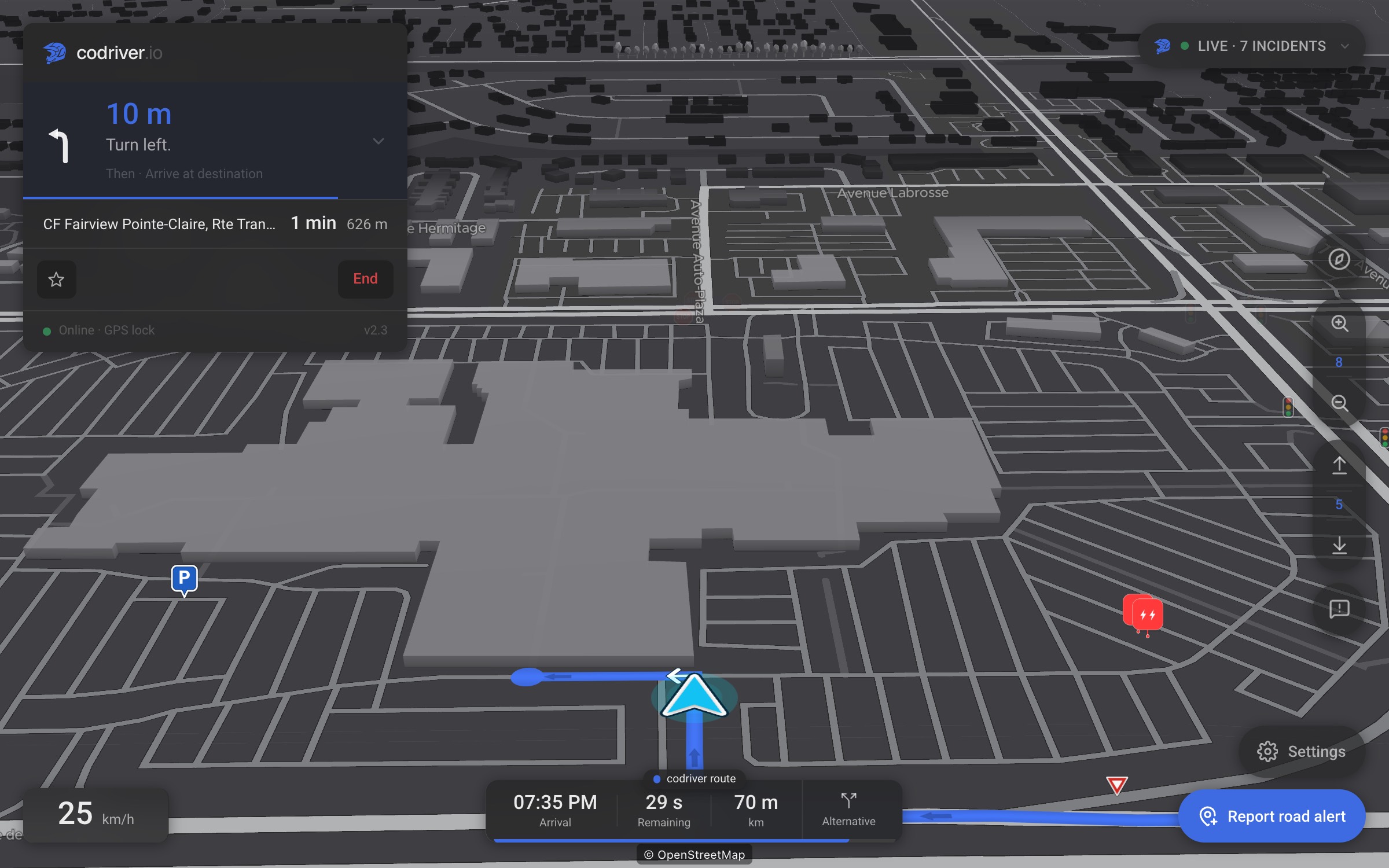
A marker where the route ends

The route used to simply stop — no dot, no flag, nothing to say “this is it”. The last point of every route is now marked with a quiet disc on the road, in the route’s own colour, so you can see where you are going before you get there. Nothing to turn on.

A blue disc on the road marking the end of the blue route, ahead of the car
The end of the route, drawn. Captured on the app’s simulated Paris drive.
A closer look
A blue disc on the road marking the end of the blue route, ahead of the car

The end of the route, drawn. Captured on the app’s simulated Paris drive.

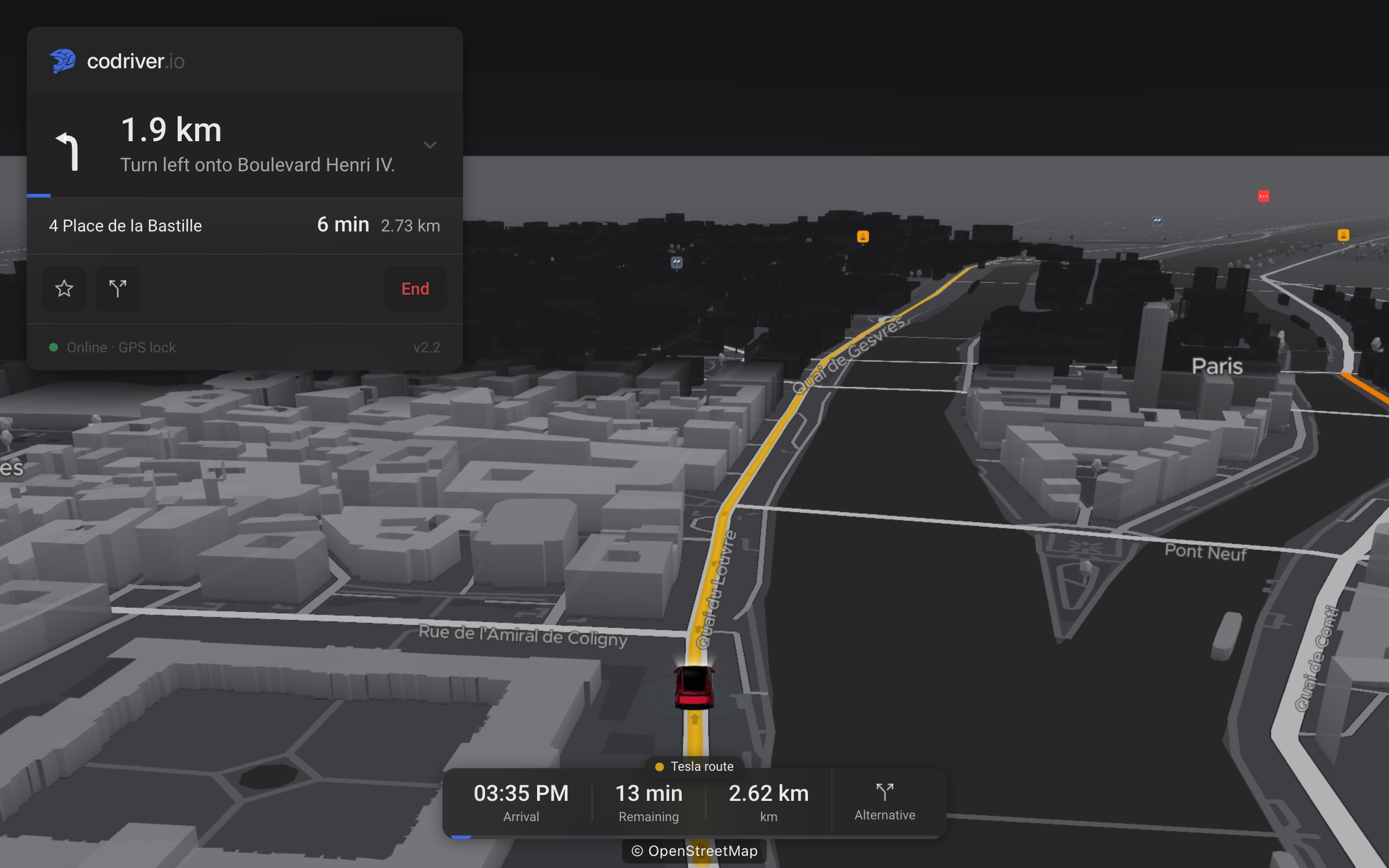
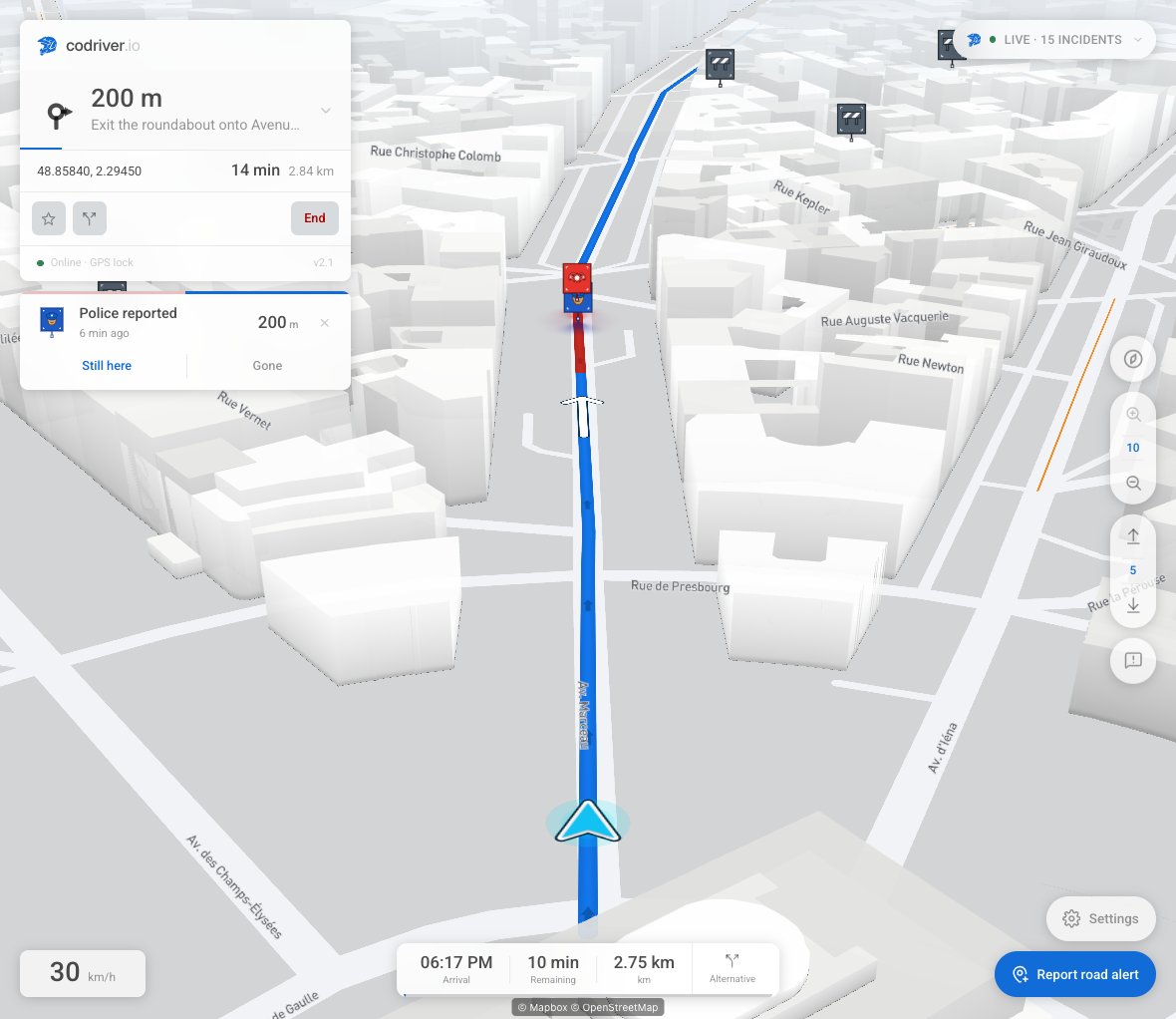
Arrows on the route, and one over the next turn

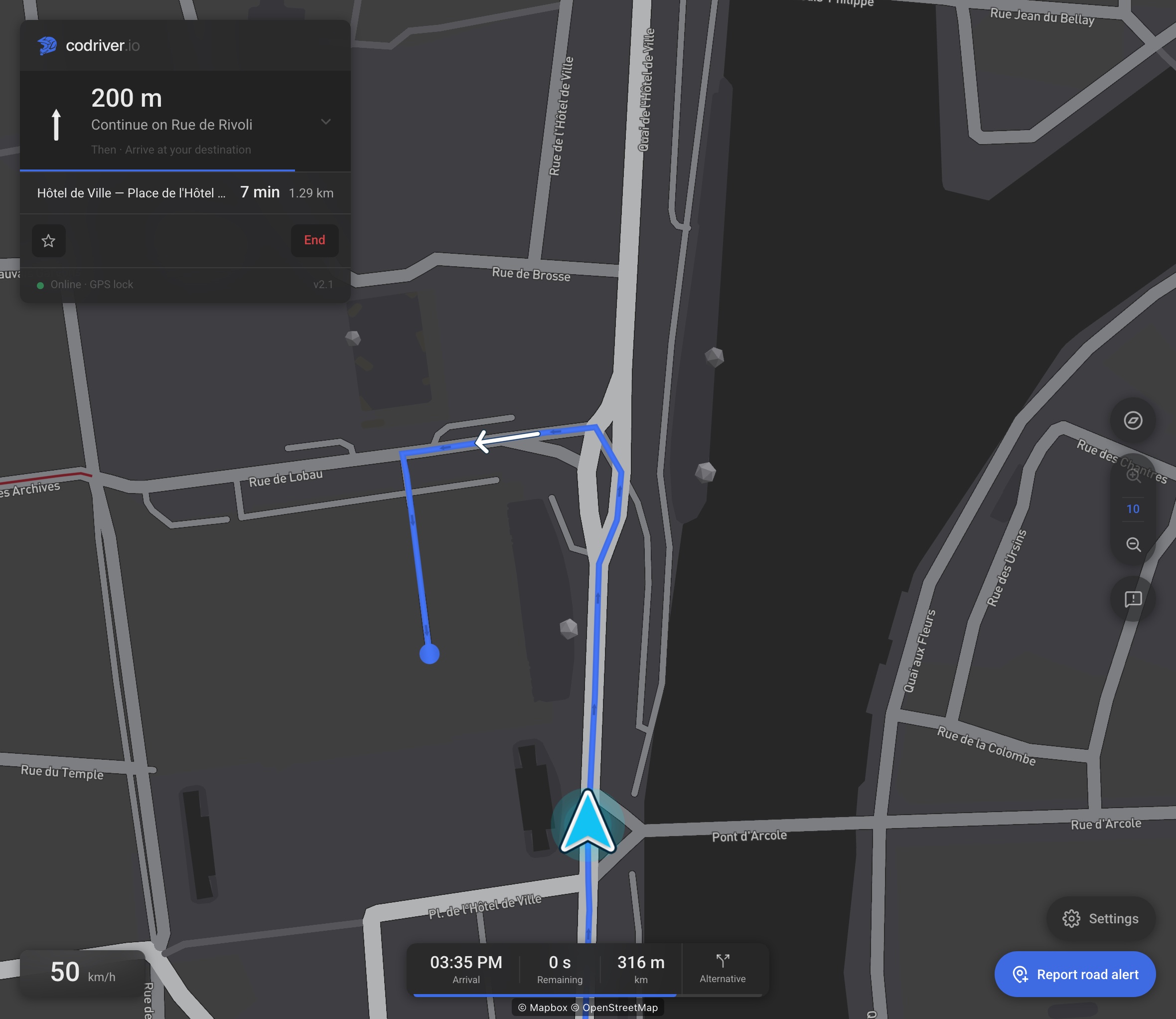
The ribbon now carries direction arrows, and a single manoeuvre arrow with a head sits over the next junction, inside the ribbon, so a glance says which way before the card does. The turn card’s bar fills toward the manoeuvre and its distance counts down to 100 m, then 10 m, then Now.

Direction arrows along the blue route, a white manoeuvre arrow and a distance countdown on the turn card
Follow the ribbon to the next manoeuvre. Captured on the production app’s simulated Paris drive.
A closer look
Direction arrows along the blue route, a white manoeuvre arrow and a distance countdown on the turn card

Follow the ribbon to the next manoeuvre. Captured on the production app’s simulated Paris drive.

The route shows where it is slow

Each stretch of the route is coloured by the traffic level reported on it, so a red kilometre ahead is visible on the map rather than only in the ETA.

A parked car reads as parked

On an older screen the car reports no speed, so the app has to work it out from position, and GPS noise on a parked car used to read as a steady walking pace — enough to walk the puck off the car while you waited at the kerb. Stopped now means stopped, and a slow U-turn is no longer mistaken for parking.

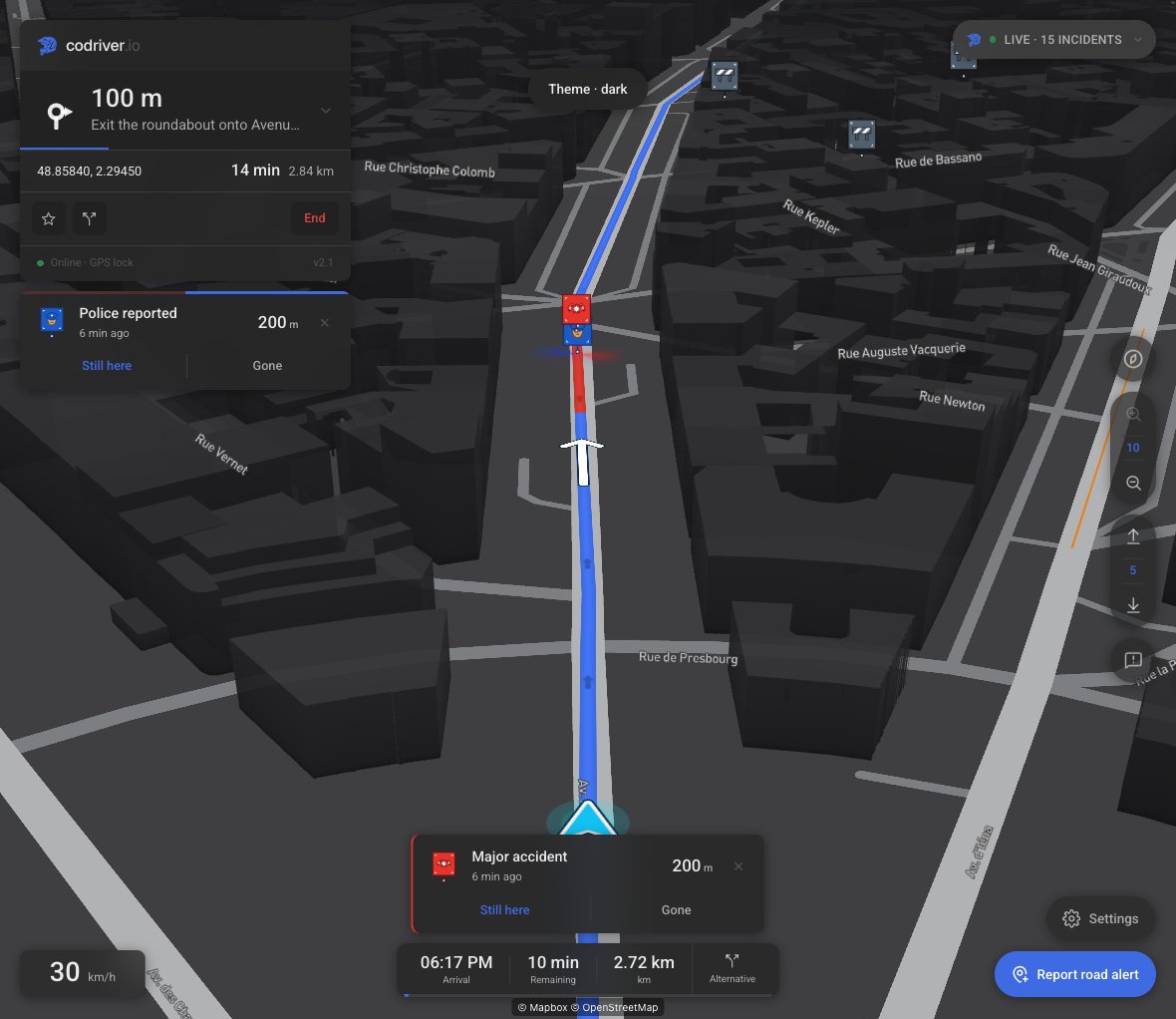
Day and night follow the car, live

When the car switches theme, the map switches with it, mid-drive, in every view. It used to reload the page, which dropped the route.

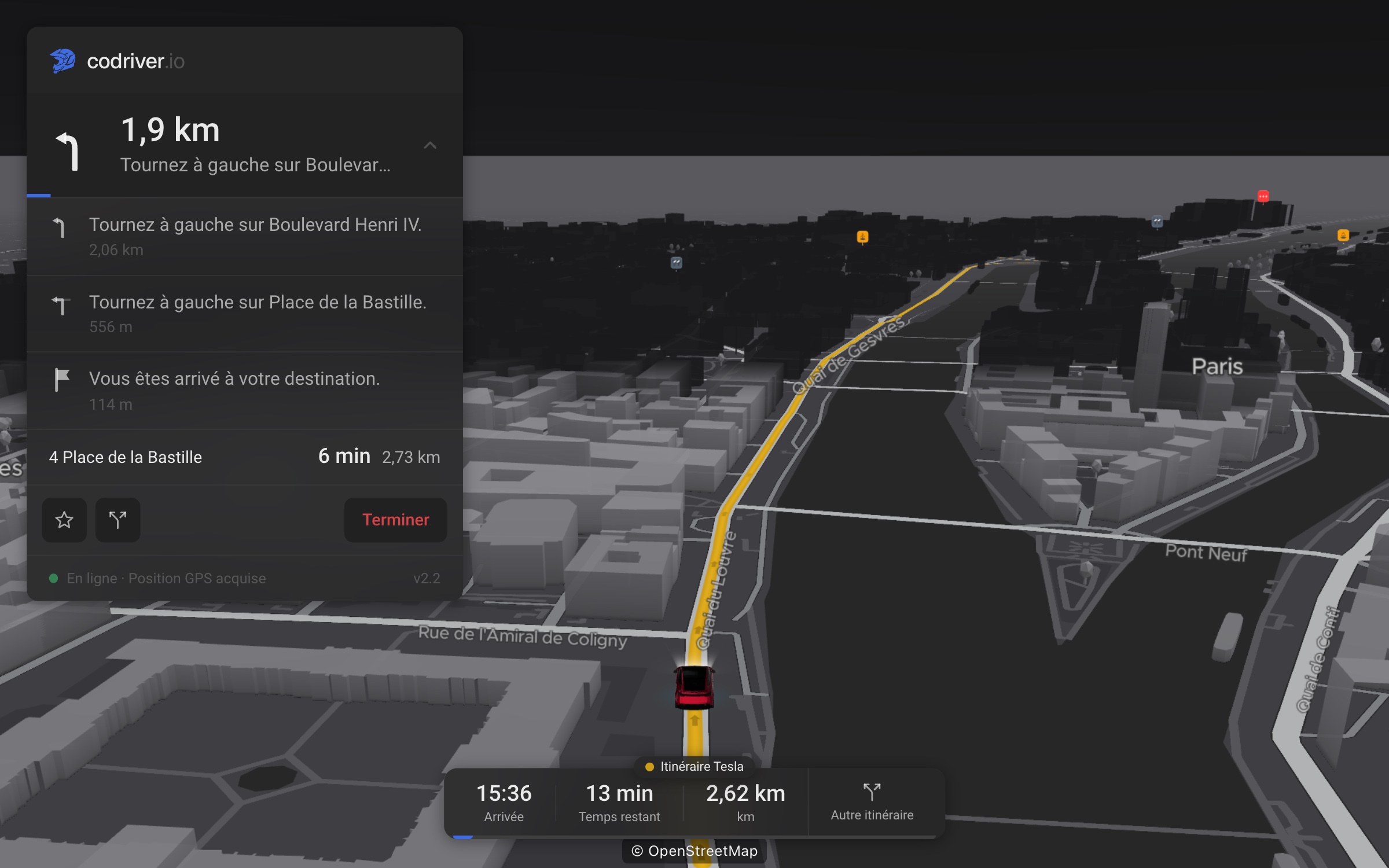
The same active route in dark mode, with the turn card and manoeuvre arrow still visible
Night mode, with the route still in place. Theme changed during the simulated drive.
A closer look
The same active route in dark mode, with the turn card and manoeuvre arrow still visible

Night mode, with the route still in place. Theme changed during the simulated drive.

A steadier position, through the gaps

The car moves smoothly between GPS readings, and the trip survives a reload. In a tunnel, navigation estimates progress only when there is evidence that you are still moving. A parked car with a noisy fix no longer gets an imaginary journey.

Rerouting waits for a real departure

A position that briefly jumps across the street is no longer enough to abandon your route. Off-course checks take confidence into account, and route suggestions give the current journey room before interrupting it. Your heading also survives the session, and the first fix points the map the right way instead of easing around from north.

Tesla destination sync

Your Tesla’s destination, one tap away

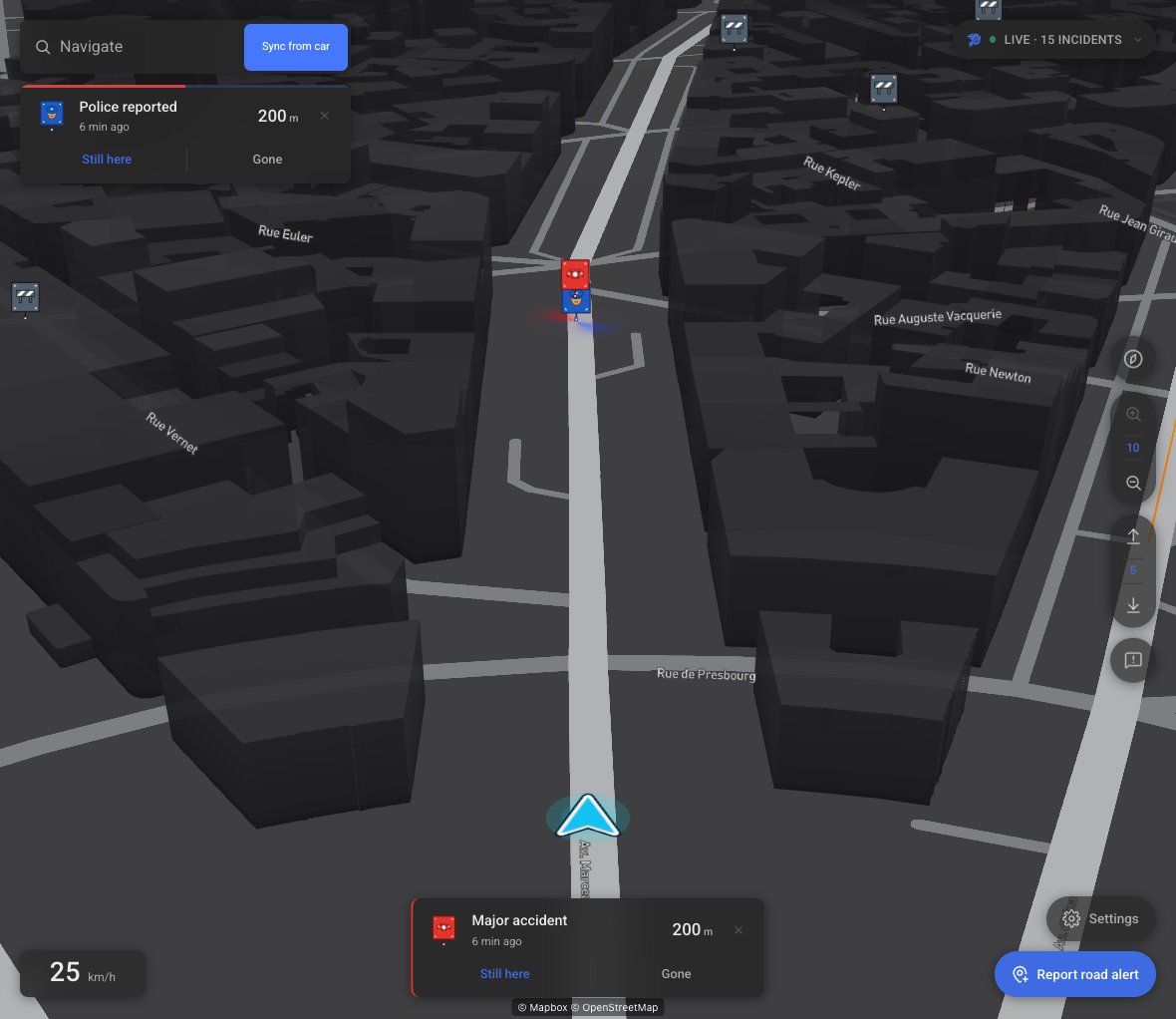
Sync from car now sits beside Navigate, before you even open search. Set a destination in Tesla’s navigation and bring it into codriver when you are ready. If the destination becomes available after the browser starts, you can try again without reloading.

Sync from car beside the collapsed Navigate control on the production app
Sync from car is one tap away before opening Navigate. Shown in the production demo.
A closer look
Sync from car beside the collapsed Navigate control on the production app

Sync from car is one tap away before opening Navigate. Shown in the production demo.

Each screen remembers its own car

Have more than one Tesla? Choose the source for this screen with the car picker, or manage it from Account. Two cars with identical browsers stay separate, and a missing destination never silently sends you to the other car’s route.

When sync cannot finish, it tells you why

No destination, sleeping car, expired connection or a short cooldown: Sync explains what happened and what you can do next. Connecting or reconnecting hands off to your phone by QR. It never wakes your car, and a route you choose yourself always wins over a sync arriving late.

Voice guidance

One voice, from the car’s speakers

Every announcement is stitched from recorded clips in one voice — “In 400 metres, turn left. Then, turn right.” — with a call at 100 m and one at the turn. The browser’s built-in speech is off everywhere: the car has no voices installed, and on a desktop it spoke in whatever voice the laptop had, which made every test sound unlike the car.

Plate readers

Licence-plate readers on the map

Automated plate readers surveyed by the DeFlock project into OpenStreetMap now draw as pins, each with the beam of road it watches, in the direction it faces. Settings ▸ Plate readers, on every plan. They warn ahead of travel the way a speed camera does. Coverage is only as good as the survey — a reader on the wrong road is a data problem, so vote it down and it fades.

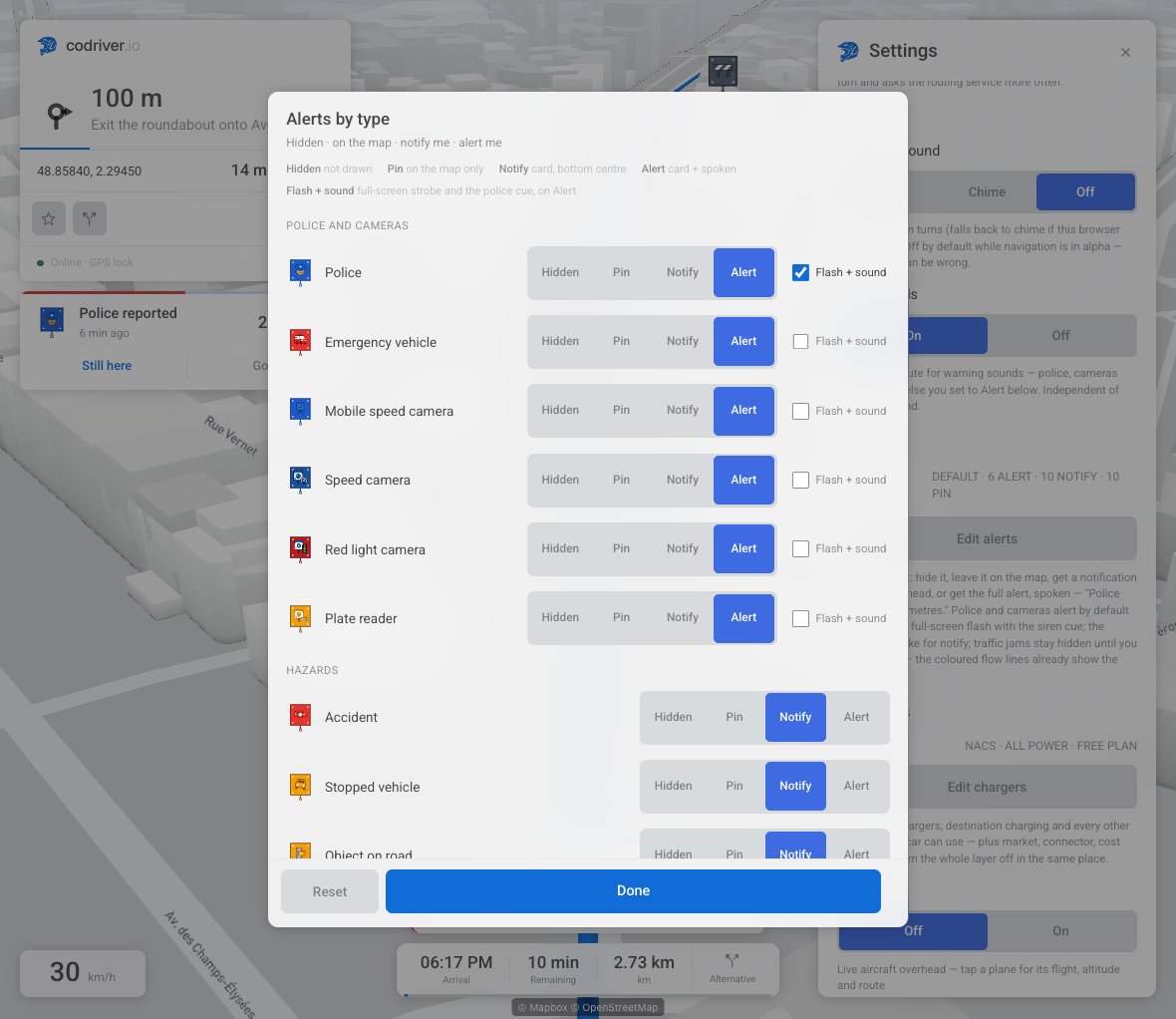
Alerts by type includes a Plate reader row with Hidden, Pin, Notify and Alert choices
Choose how plate readers reach you in Settings → Edit alerts.
A closer look
Alerts by type includes a Plate reader row with Hidden, Pin, Notify and Alert choices

Choose how plate readers reach you in Settings → Edit alerts.

Report from the car

Tell us from the driver’s seat

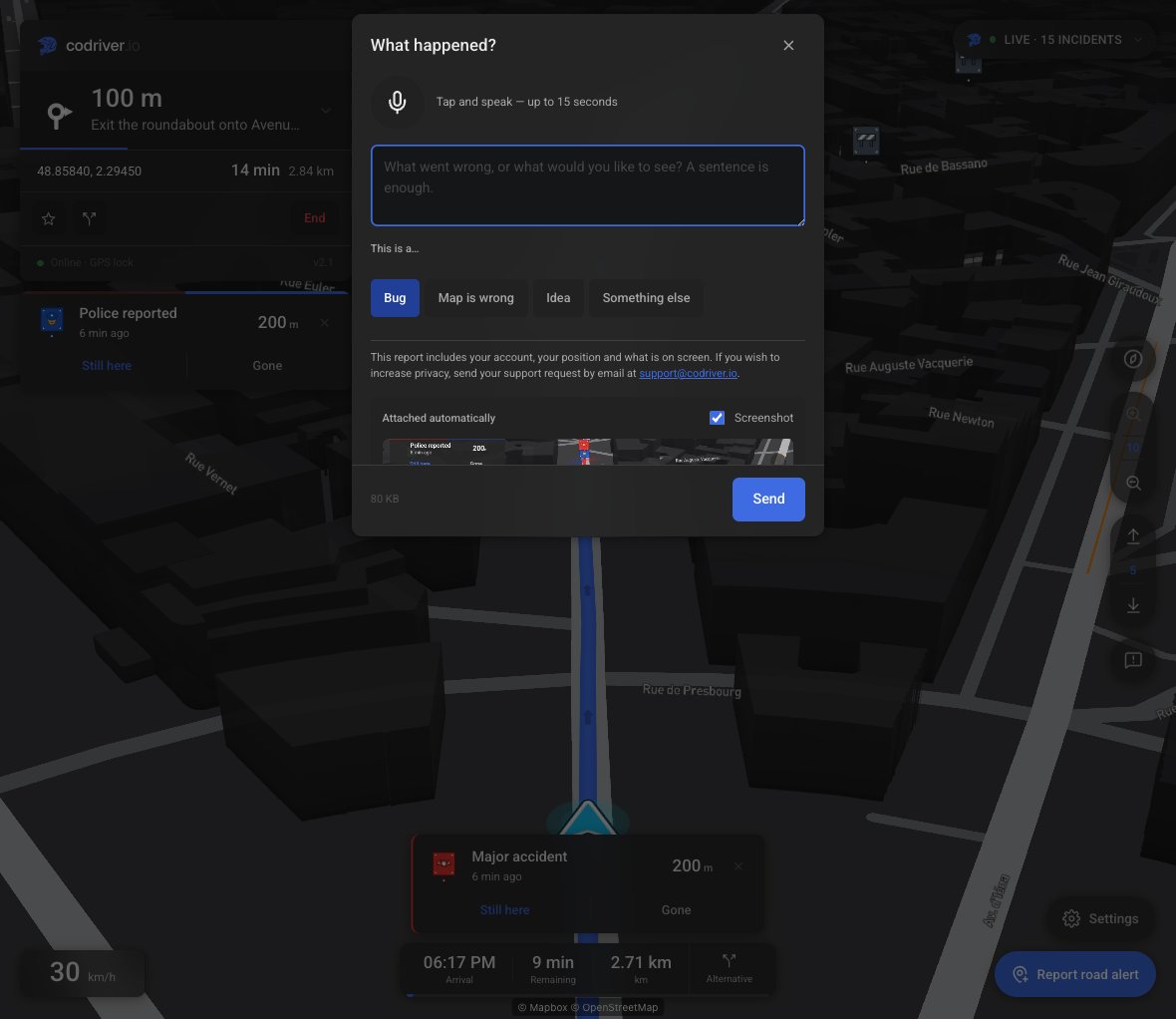
Report ▸ Feedback sends us a note, or a 15-second voice recording, with a picture of the screen as it was and the last few things the app did. You see exactly what is in the report before it goes — if it is too private to show you, it is too private to send. Every report lands on your account page with a status, and voice reports gain a transcript within the hour.

Feedback form with a voice recording button, issue categories, privacy notice and an attached screenshot preview
Review the screenshot and report before sending. Nothing was submitted for this capture.
A closer look
Feedback form with a voice recording button, issue categories, privacy notice and an attached screenshot preview

Review the screenshot and report before sending. Nothing was submitted for this capture.

Settings

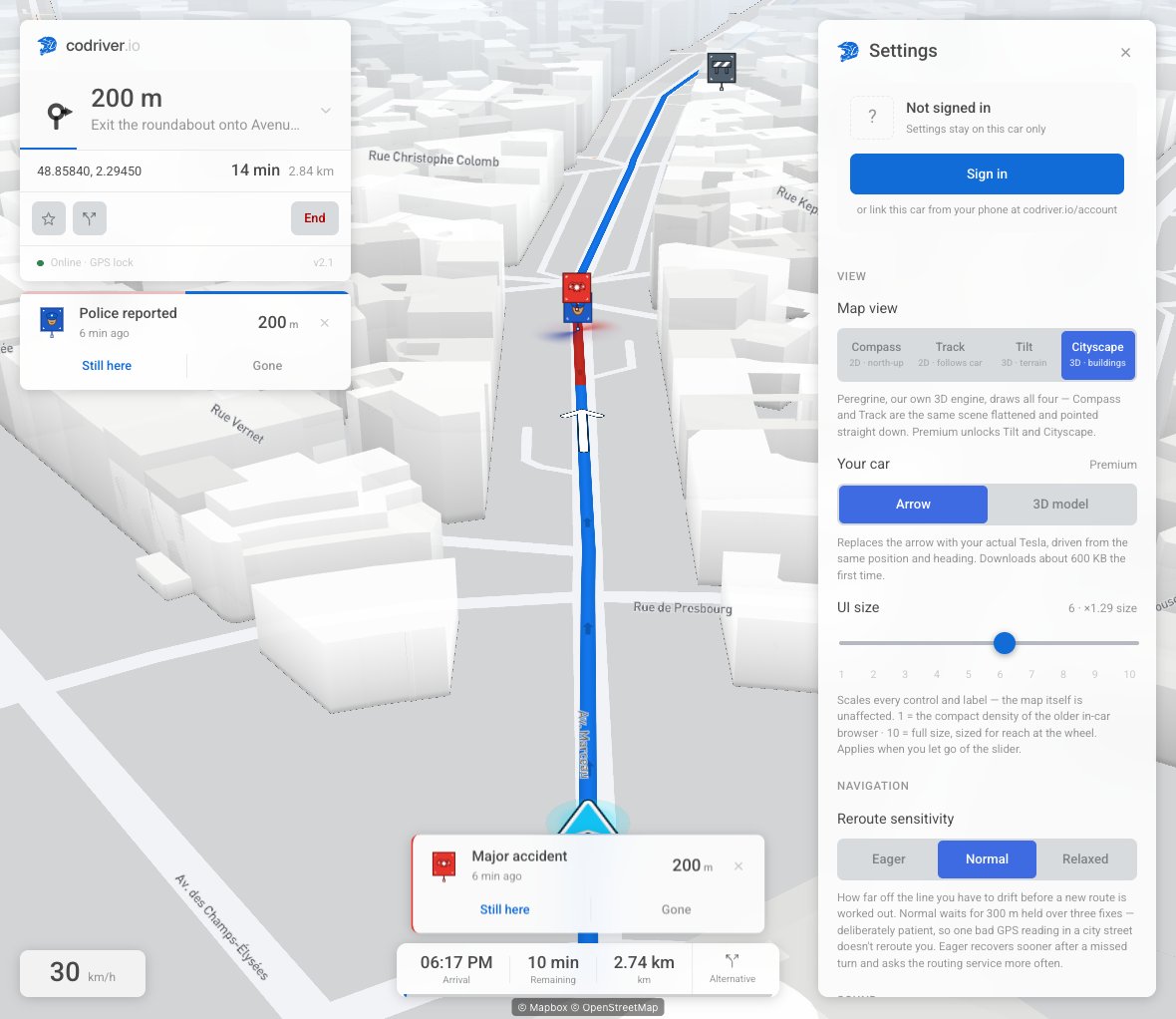
Settings opens on you

The panel now starts with your account — name, plan, the car that is linked, a link to manage it — and asks one question per decision after that. Which sources the app fetches follows from which alerts you keep: hide a category and its feed stops being requested too. Traffic reports now notify ahead by default; any alert preferences you already saved stay yours.

Settings panel starts with account connection, followed by map view, car display and UI size
Account first, then the view and controls. Shown without a signed-in account.
A closer look
Settings panel starts with account connection, followed by map view, car display and UI size

Account first, then the view and controls. Shown without a signed-in account.

One card per event

The card that announces a police report or a hazard is where you confirm or dispute it. It follows the pin’s distance as you drive and stays until you vote, dismiss it, or pass the pin. The separate “still there?” prompt is gone, so a category you hid is never asked about.

Every road event gets its own level

For each category, choose Hidden, Pin, Notify or Alert. A quiet map, an on-screen heads-up or a warning with sound: you decide which events deserve which treatment. A minimum gap between announcement cards keeps a busy road from becoming a pile of interruptions.

The map and your car

Buildings leave room for your position

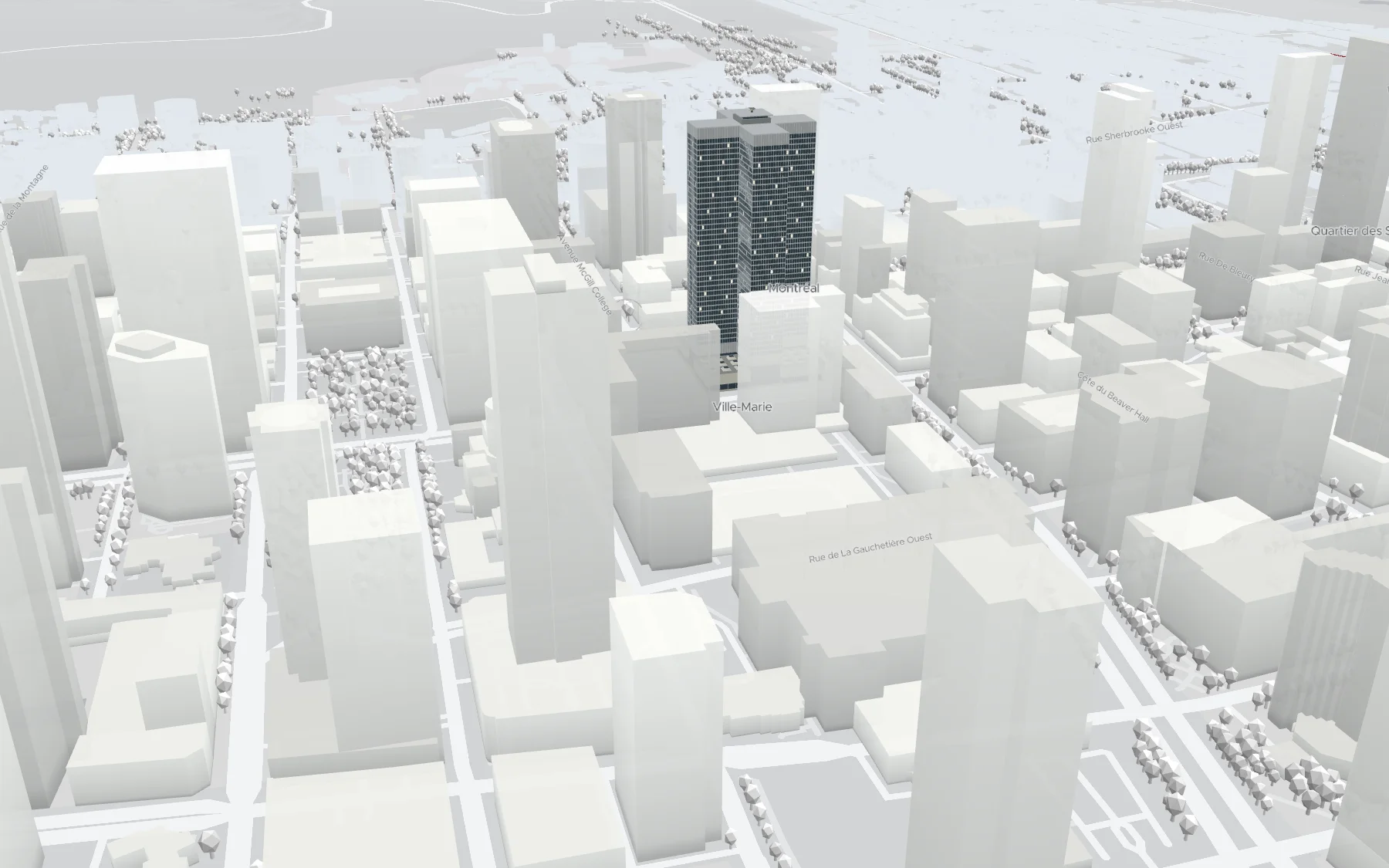
Tall buildings now open a window around the car so they do not swallow your position in Cityscape. The car sits lower in the view, leaving more room for the road ahead.

Sharper car art, lighter to load

The cars in the garage, simulator and driving app use flat-colour surfaces with the details that make each model recognisable. The Cybertruck loads correctly again, and updated model files get fresh addresses so an old cached render does not stick around.

Website

The homepage is the car

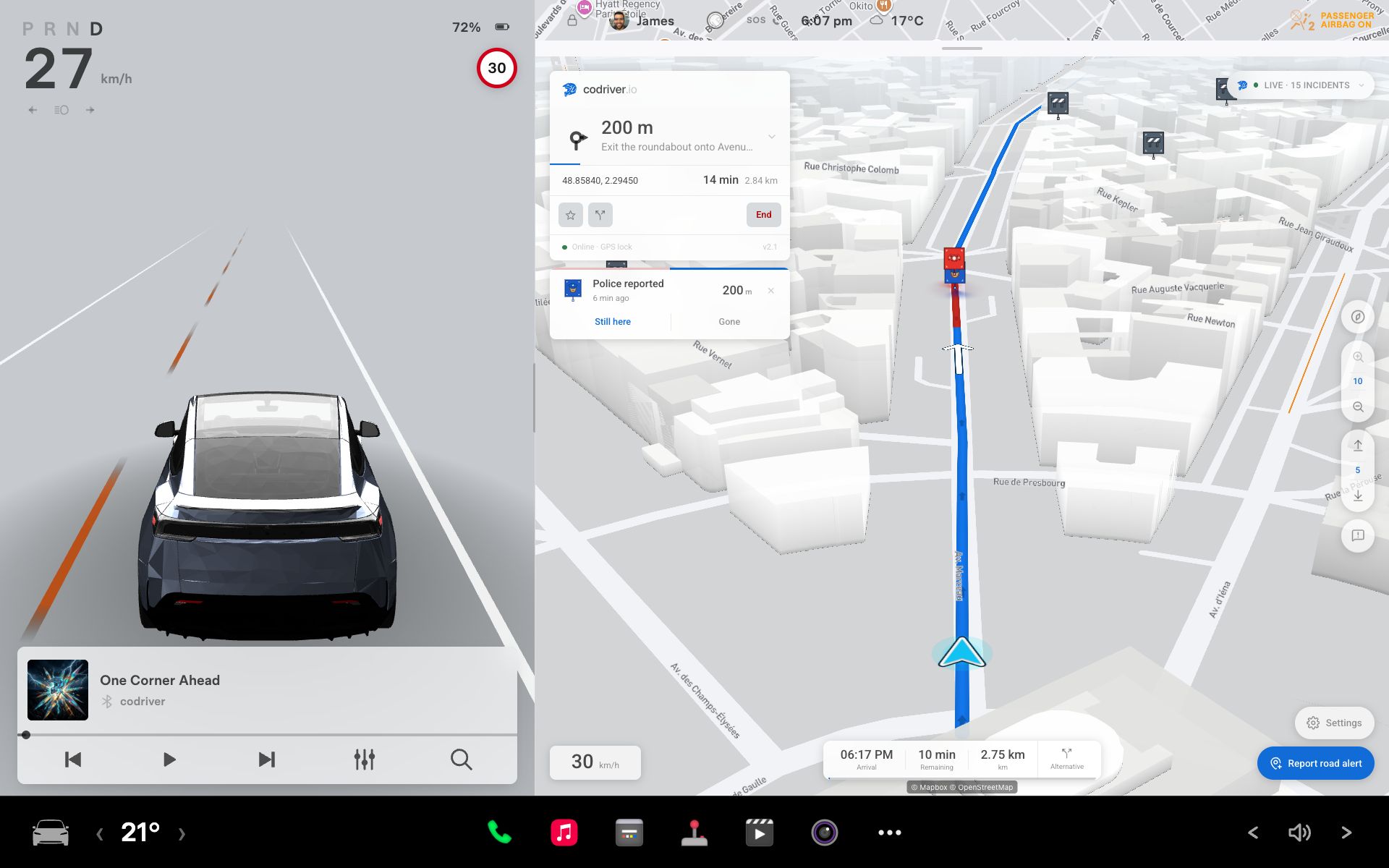
On a desktop that can run it, the screen in the bezel is a live Tesla touchscreen simulator running the real app on a scripted drive through Paris, in your theme. Phones and smaller screens get a recording of that same drive.

Full Tesla simulator screen with the 3D car, driving cluster and codriver’s live route in the browser pane
The actual product inside the Tesla simulator used by the homepage.
A closer look
Full Tesla simulator screen with the 3D car, driving cluster and codriver’s live route in the browser pane

The actual product inside the Tesla simulator used by the homepage.

Traffic and alerts

A pin's age is the report's age

Alerts carry the time they were reported. Where there is no such time, the card shows when the pin was last confirmed. It never again shows the day it first landed in our database, which is what made a fresh jam read as a fortnight old.

Traffic notifies ahead again

Now that a traffic pin is a report somebody actually filed, Traffic gives you one card ahead, without a sound. This is the default for new installs and drivers who have not saved alert preferences. If you already chose your levels, nothing changes them.

Every alert says what it is

A pothole card used to say “Other hazard”. Now each kind of report has its own words on the card, in the popup and in the announcement — Pothole reported, Flooded road, Vehicle stopped on the shoulder, Left lane closed. Heavy rain is no longer filed as a flood, and a car stopped in a live lane is no longer filed as one on the shoulder. Animals, roadkill and weather events also get their own names. Personal assistance requests are no longer drawn as road hazards.

And says it out loud

At the Alert level a card is now spoken: “Police reported, 200 metres.” Turn-by-turn guidance always wins — an alert waits its turn, and stays quiet when your next manoeuvre is close.

Flash and sound, per category

Police, emergency vehicles, mobile radar, speed cameras, red-light cameras and plate readers each get a Flash + sound choice. Police starts enabled; the other categories are opt-in.

Alert settings with separate Flash + sound checkboxes for police and camera categories
Flash and sound are a separate choice for each category. Captured on the production app.
A closer look
Alert settings with separate Flash + sound checkboxes for police and camera categories

Flash and sound are a separate choice for each category. Captured on the production app.

Police lights stay on the road

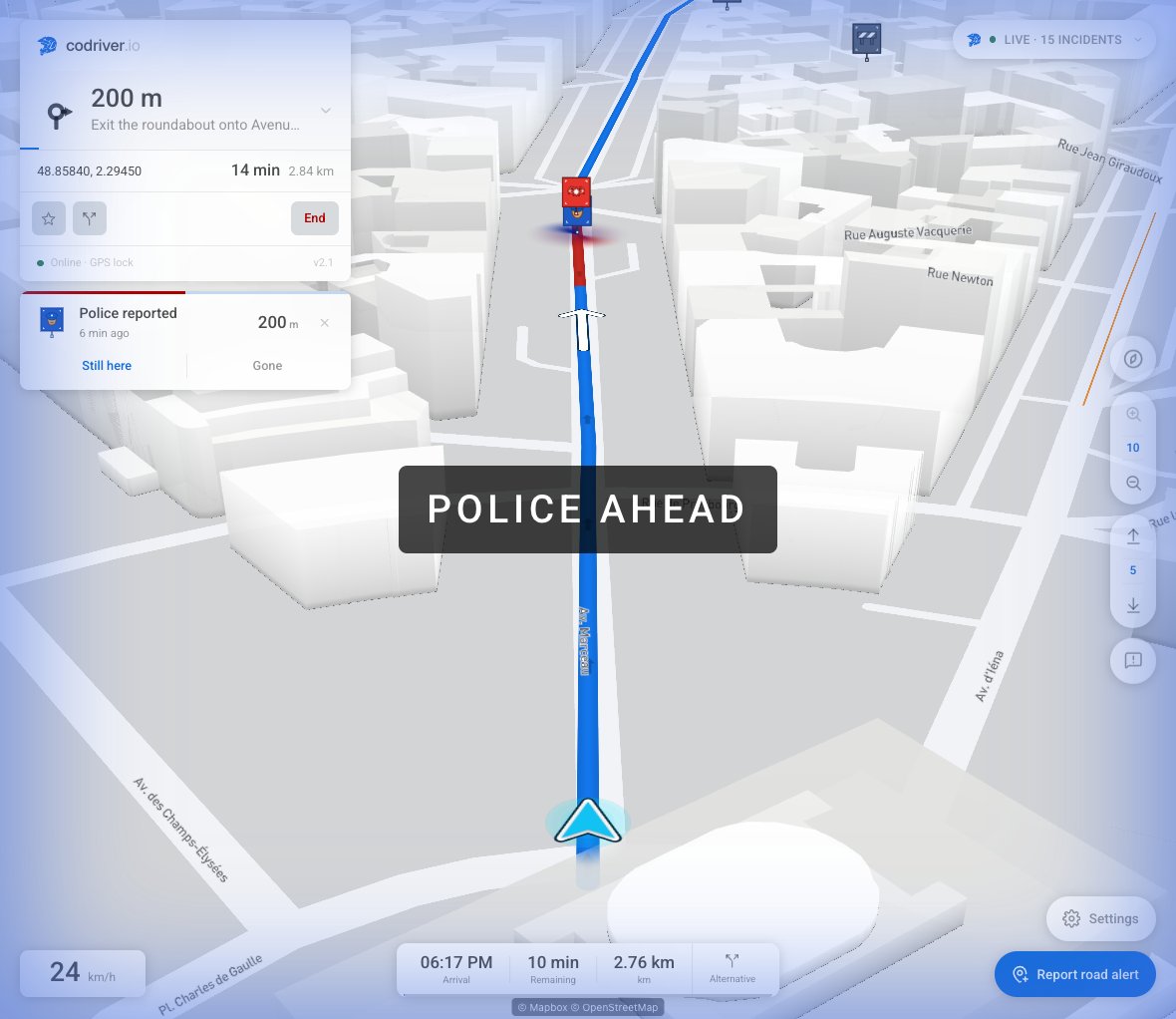
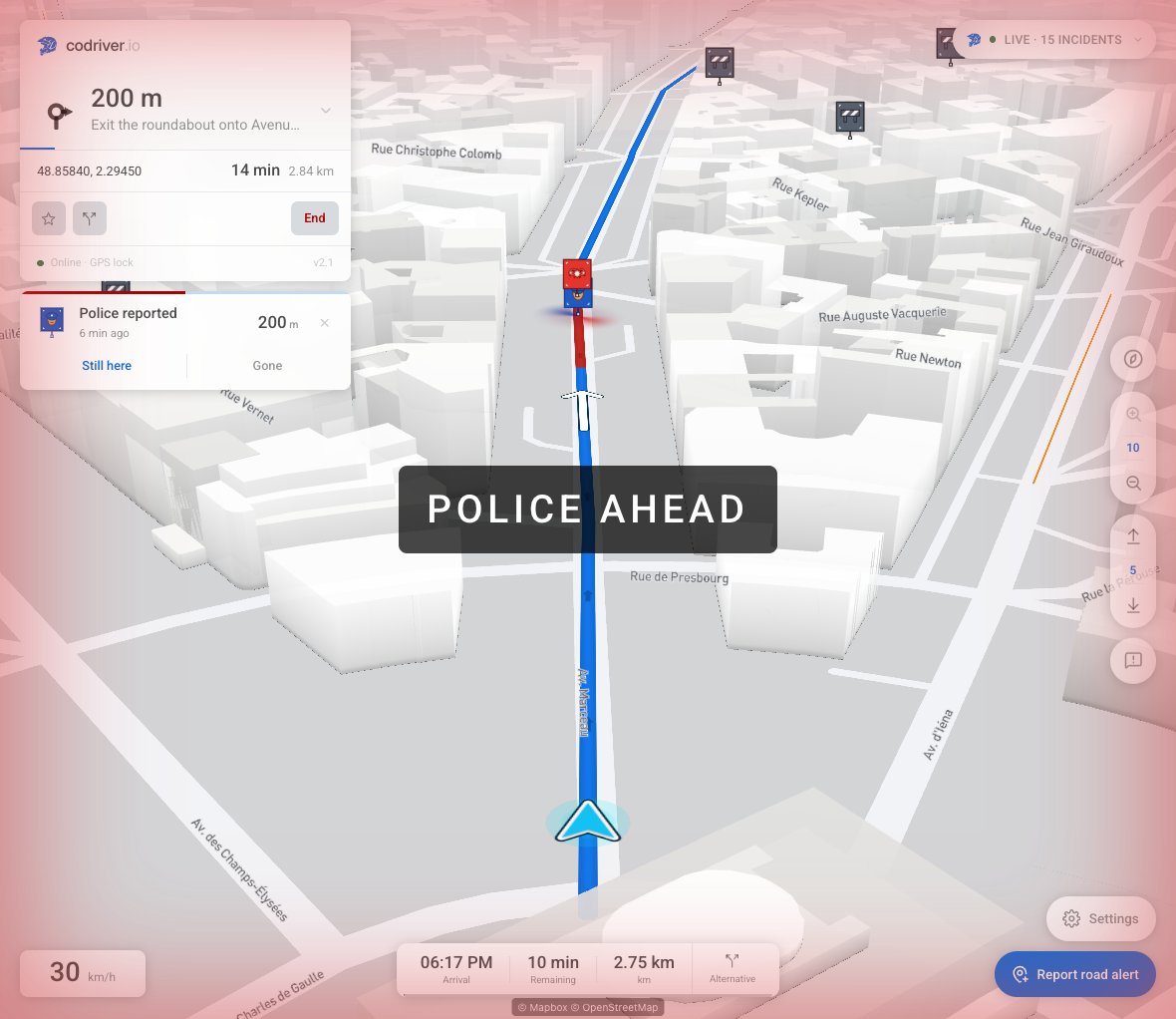
Red and blue light sweeps sit around the police pin on the tarmac and brighten when the ahead alert fires. An edge glow replaces the full-screen wash, keeping the map visible. Alert distances also count down in stable steps and stay gone once you pass within 10 metres.

Red and blue lights beneath a police pin, an edge glow and the Police ahead alert over a visible route
Police lights on the road, with the route still visible. Captured during the production demo’s scripted alert.
A closer look
Red and blue lights beneath a police pin, an edge glow and the Police ahead alert over a visible route

Police lights on the road, with the route still visible. Captured during the production demo’s scripted alert.

Your reports get the same detail

Driver-submitted pins gain the same event names, street context, age, voting and ahead-of-travel announcements as relayed reports. A report from another codriver driver should be just as useful on the map.

The demo gets straight to the action

The simulated car starts on the route, facing the right way, and encounters scripted road events in the first seconds. An accident and a police report demonstrate the real alert cards without anyone submitting a live road report.

A scripted police report on the demo route with a distance countdown and Still here and Gone buttons
A scripted police event demonstrates the real alert card on the production app.
A closer look
A scripted police report on the demo route with a distance countdown and Still here and Gone buttons

A scripted police event demonstrates the real alert card on the production app.

Retired pins are cleared out

Expired events are removed a week after they retire, together with their history, instead of staying in the database forever.

The beta ends 30 September

Free Premium runs to 30 September

Premium · monthly comes back on 1 October. Every account on the Beta perk returns to the Free tier that day and keeps every base feature — live alerts, navigation, cameras, plate readers, reports. Thank you for driving it in.

At the end of beta: the OG badge

Planned for the end of beta: a unique profile badge for accounts created during beta with a car linked. It will say you were here first, and will not expire.

Invite friends, earn Premium

The invite link on your account page keeps working after the beta, and it is how anyone earns Premium: +1 month for every 5 friends who sign up via your link and pair a Tesla · +1 month when a referred friend subscribes to Premium · monthly · +2 months when a referred friend subscribes to Premium · yearly · Rewards stack — during beta there’s no cap. Credit applies at your next renewal once paid billing ships.

THE ROAD SO FAR

Earlier releases

Bigger where the screen is bigger.

Bigger where the screen is bigger.

A Model S or X hands the browser its whole screen unscaled, so every control came out about a third smaller than the same setting gives you in a Model 3 or Y. The UI size slider now goes further on those screens — and the 3D car is the size of a car again.

Display

The UI size slider goes to 16 on a large screen

Same panel, same pixel density, different maths: a Model 3 or Y has its browser enlarge everything by half again, and a recent S or X does not. The slider now runs past full size on any screen that reports its pixels unscaled, which puts a control back where it has always been on a 3 or Y, and then some. Nothing changes on a Model 3 or Y. If a firmware update ever starts scaling the bigger screens, the extra steps step aside on their own.

Move the Report button off the corner

Some cars paint their own badge — a passenger-airbag warning, for one — over the bottom-right corner, on top of Report. Settings ▸ View ▸ Report button now offers Raised, which lifts it clear. It holds that distance at every UI size.

Your car

The 3D car reads as a car, not a speck

Below about the zoom you drive at, the car now holds a steady size on screen instead of shrinking with the map, so it sits next to the arrow it replaces rather than a third of it. Park, and it goes back to true scale against the road.

It was being measured with its headlights on

Every vehicle's length was taken with the headlight beams counted in — eleven metres of light on the road treated as part of a four-and-a-half-metre car. The glow ring around the car was sized off that same number, which is why the car sat lost in the middle of it. Both are right now, on all twelve models.

Your screen, with other people's apps on it.

Your screen, with other people's apps on it.

codriver now has a marketplace. Put a page in one of two screen slots, or let an app tap you on the shoulder — phone notifications arrive as a toast over the map and then get out of the way. Everything runs walled off from your session, your location and your route.

Extensions

Two slots on your screen, and you decide what goes in them

There is a marketplace at codriver.io/marketplace. Install something, fill in whatever it asks for on your account page, choose a slot, and it is on the driving screen the next time the car loads. Take it out the same way. Nothing appears in your car that you did not put there.

Notifications are toasts now, not a panel

A notification app spends most of a drive with nothing to say. Giving it one of the two slots to display the words “listening” for an hour was a bad trade, so it no longer works that way. Notification apps get four background channels instead — invisible until something arrives, then a toast over the map for a few seconds, then gone. Four can be listening at once, and they queue rather than pile up.

Phone notifications on the map, via ntfy

The first app in the marketplace is an ntfy client. Point it at one of your ntfy topics and anything you send there — from your phone, a home server, a script that watches a price — shows up on the driving screen. Your own topic, your own server if you self-host, nothing routed through us.

Or point a slot at any page you like

“Custom page” is a first-party app that takes a URL. A dashboard, a departures board, a chart you already keep in a browser tab. If it is a web page and it allows being framed, it can sit on your screen. We check whether it allows framing when you save it and tell you plainly if it does not, instead of leaving you with a blank rectangle.

What an extension cannot do

Every extension runs in a sandboxed frame from its own address, never as part of codriver. It cannot read your session, your saved places, your route or your position — not by policy, but because none of that is reachable from where it runs. What it receives is the size of its box, your theme, your units, and whatever settings you typed into it yourself. A notification app can send exactly one thing back: text for a toast, which we draw ourselves. Links inside a toast are stripped — tapping through to a web page is not something we are going to put in front of someone who is driving.

A person reads every submission

Nothing reaches the shelf automatically. Every app and every new version is reviewed by hand before anyone can install it, and an update to an app you already have never changes under you — your install stays pinned to the version that was approved when you installed it.

Your account

One account, several ways in

Signing in with Tesla used to match you by email, which quietly created a second account if the email on your Tesla differs from the one you signed up with. It does not any more. Your account page now lists every way you can sign in, lets you link another, and if you did end up with two accounts it can merge them — cars, paired screens and settings included.

Your garage

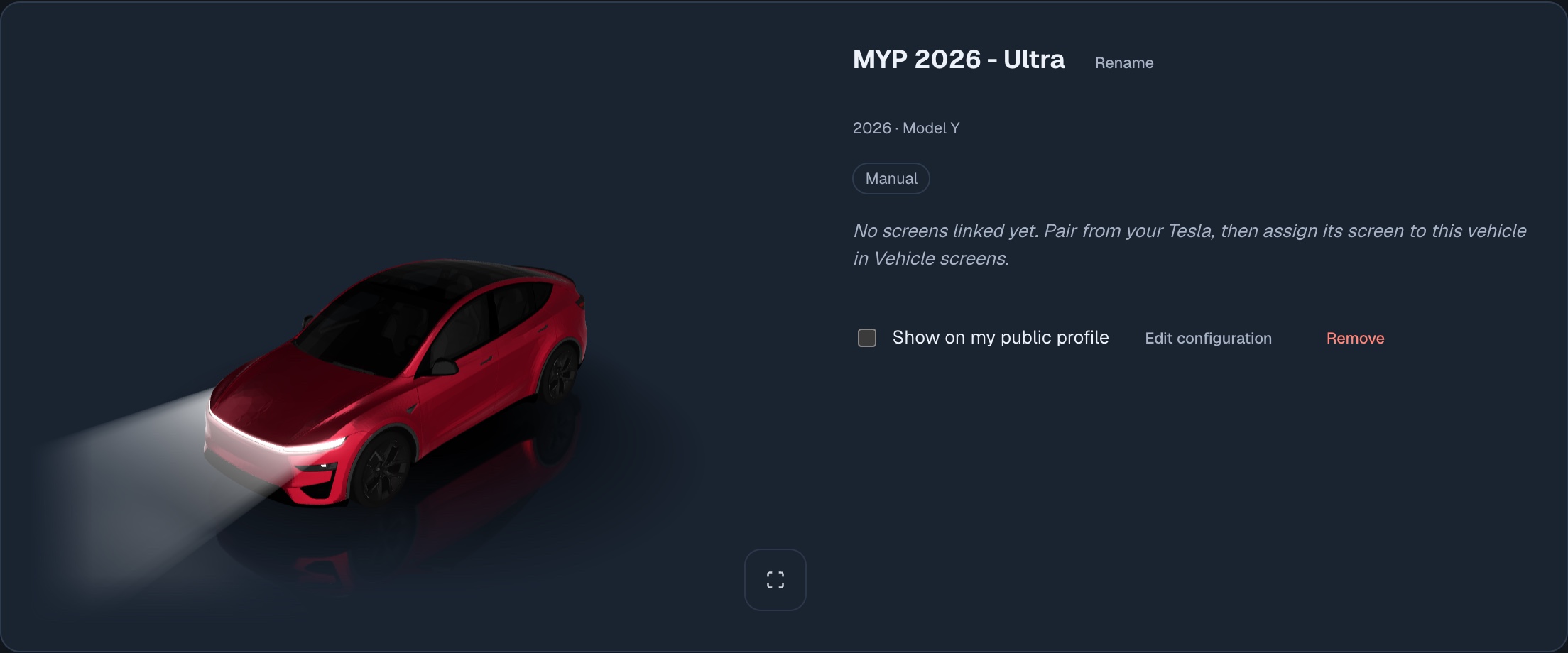
Your car, as Tesla describes it

When you connect a Tesla we now take the year, model, trim, colour and wheels straight from your car rather than guessing at the closest thing we had seen before. Cars we had never encountered used to end up wearing someone else's paint. You still own how it looks — name, wrap, whether it is visible on your profile — and Tesla owns the facts.

When we cannot tell which car you meant

Sending a destination from the website to a screen that is not clearly tied to one of your cars now says so, instead of silently picking one.

On the map

Where a pin came from

The sources panel now names the service each pin actually came from. If you are deciding whether to trust a report, you should be able to see where it originated — a vague label would have been the easier answer and the worse one.

For developers

The shelf is open, and the contract is written down

If you can build a web page, you can build a codriver extension — there is no SDK to install and nothing to compile. Your page runs in a sandboxed frame and receives one message with the driver's theme, units, screen size and the settings they filled in from a schema you declare; a notification app posts back a title and a line of text and we draw the toast. Submit at codriver.io/marketplace/submit and a human reads it, usually within a day. The full contract, the config-schema rules and the compatibility guarantees are at developer.codriver.io, and the design decisions behind all of it are public in our ADRs — including why we refused the obvious version of this feature, where you would hand us a URL to a script and we would run it alongside our own code.

The engine has a name, and the old cars won.

The engine has a name, and the old cars won.

Yesterday's 3D views run on a renderer we wrote ourselves. It is called Peregrine — and on a 2019 Model 3 it draws the 3D map more than twice as fast as the flat one.

Map

Meet Peregrine

codriver runs inside the Tesla's own browser — nothing to install, no firmware to wait for. That is the whole idea, and it is also our hardest constraint: everything has to work in a browser tab on a car computer. The map is where that ceiling landed hardest, so we rebuilt the 3D engine ourselves rather than keep tuning a general-purpose one that has to run on phones, laptops and televisions too. As far as we know, nobody else has done this for this browser.

On older cars, 3D is now faster than 2D

That sounds like a mistake. It is not. On a 2019 Model 3 — the pre-2022 Intel computer — Peregrine draws the full 3D map at 25–35 frames a second, where the ordinary flat map on that same car manages 10–15. Same car, minutes apart. It holds a steady 60 on a 2023 Model Y, and we proved it on a 2017 Model S as well. We expected those older cars to become merely usable; the name came afterwards, once we saw what they actually did.

The warning is gone

If your Tesla was built before 2022, opening a 3D view used to show a dialog warning you that your car might not cope — and even if you went ahead, the app snapped you back to 2D on the next reload. Both are gone. Tilt and Cityscape are simply available now. That warning described the old renderer, not your car.

A proper start-up screen

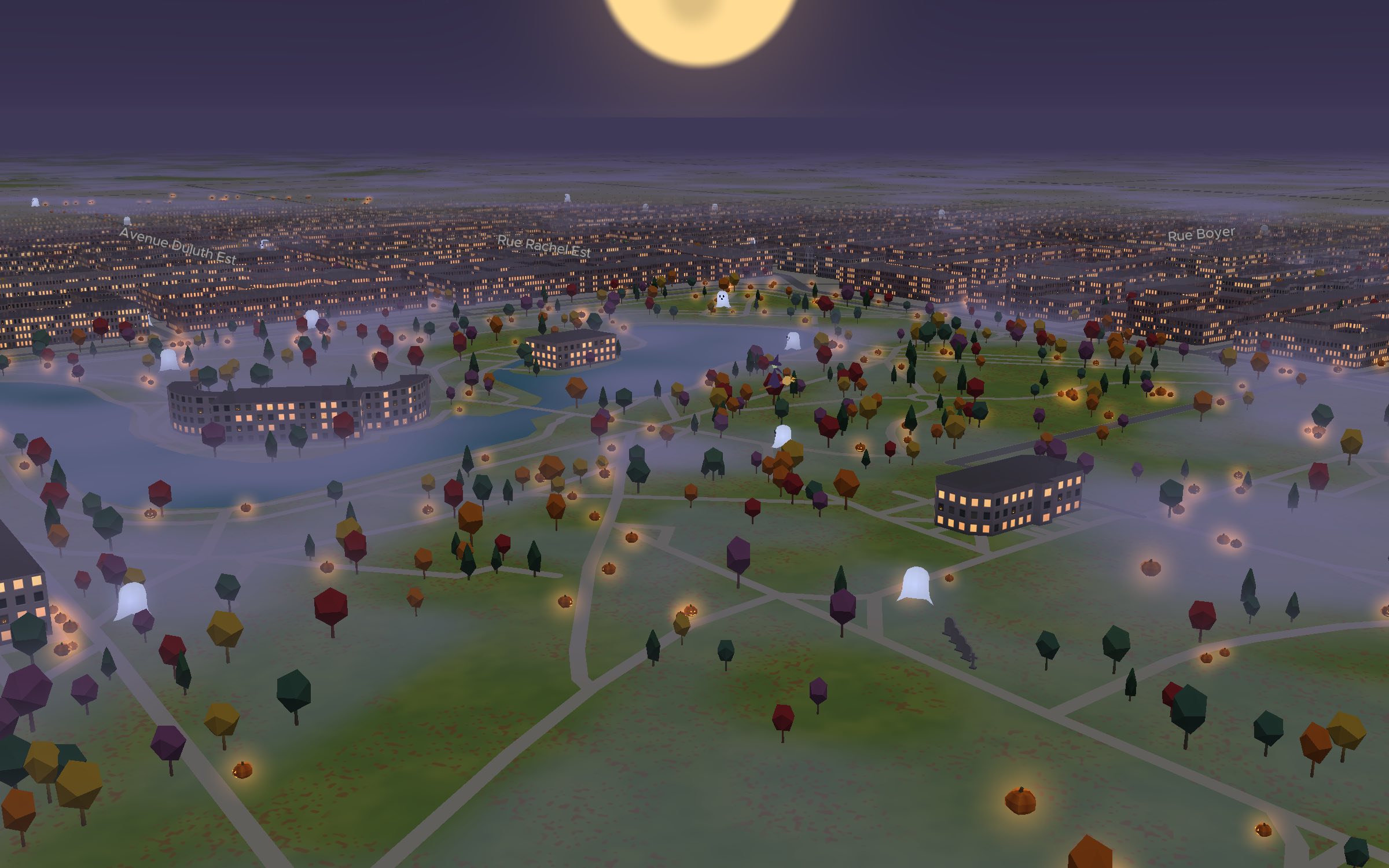
3D views now open on a Peregrine boot screen rather than a blank map: the falcon in its dive, and a readout of what the engine is actually doing — fetching tiles, decoding them, building the road ribbons. It clears the moment the map has real tiles on screen, not a moment before.

On the highway

Your car glides instead of hopping

The car's GPS reports once a second. At 120 km/h that is a 33-metre jump every second, and on a map that now draws 60 frames a second the jump was the only thing left that looked wrong. Above 30 km/h the map now carries your car forward between fixes at your actual speed — along the route when you are on one — and eases onto each new fix rather than snapping to it. The position is still the car's; only the motion between readings is ours.

The road ahead, all the way to the horizon

The detailed map used to end about a kilometre in front of you. Tilt the view for a long look down the highway and the road simply ran out onto bare ground, well before the exit you were watching for. Major roads now draw out to the fog line, and the map fetches the tiles in front of you — about thirty seconds of driving ahead — before you get there, instead of the moment you arrive. 2022-and-newer cars fetch a little further ahead; older ones keep the lighter footprint.

Less zoom-out at speed

Above 80 km/h the map used to keep pulling back as you went faster. With a steep tilt the top of the screen already looks kilometres down the road, so zooming out bought nothing except a smaller car and a closer map edge. The speed-linked zoom now flattens out on the highway, and a steeper tilt gives some zoom back. City driving is unchanged.

A new engine under the map. Your car on it.

A new engine under the map. Your car on it.

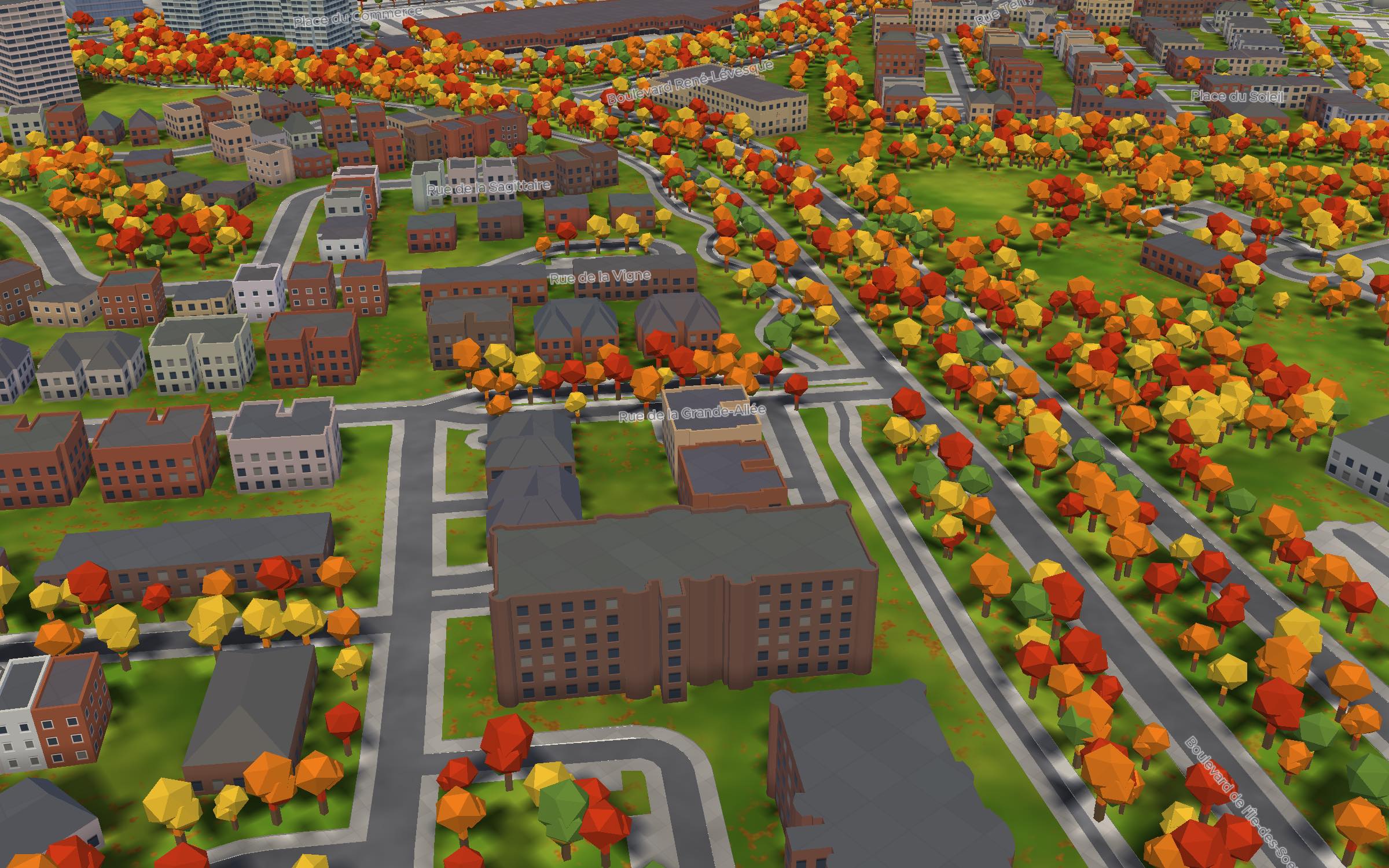
The 3D views now run on a renderer we built for the car — roads drawn as real geometry, street names that stay upright, and your own Tesla in place of the arrow. You can also drive without an account, and vote on any pin on the map.

Map

The 3D views, rebuilt

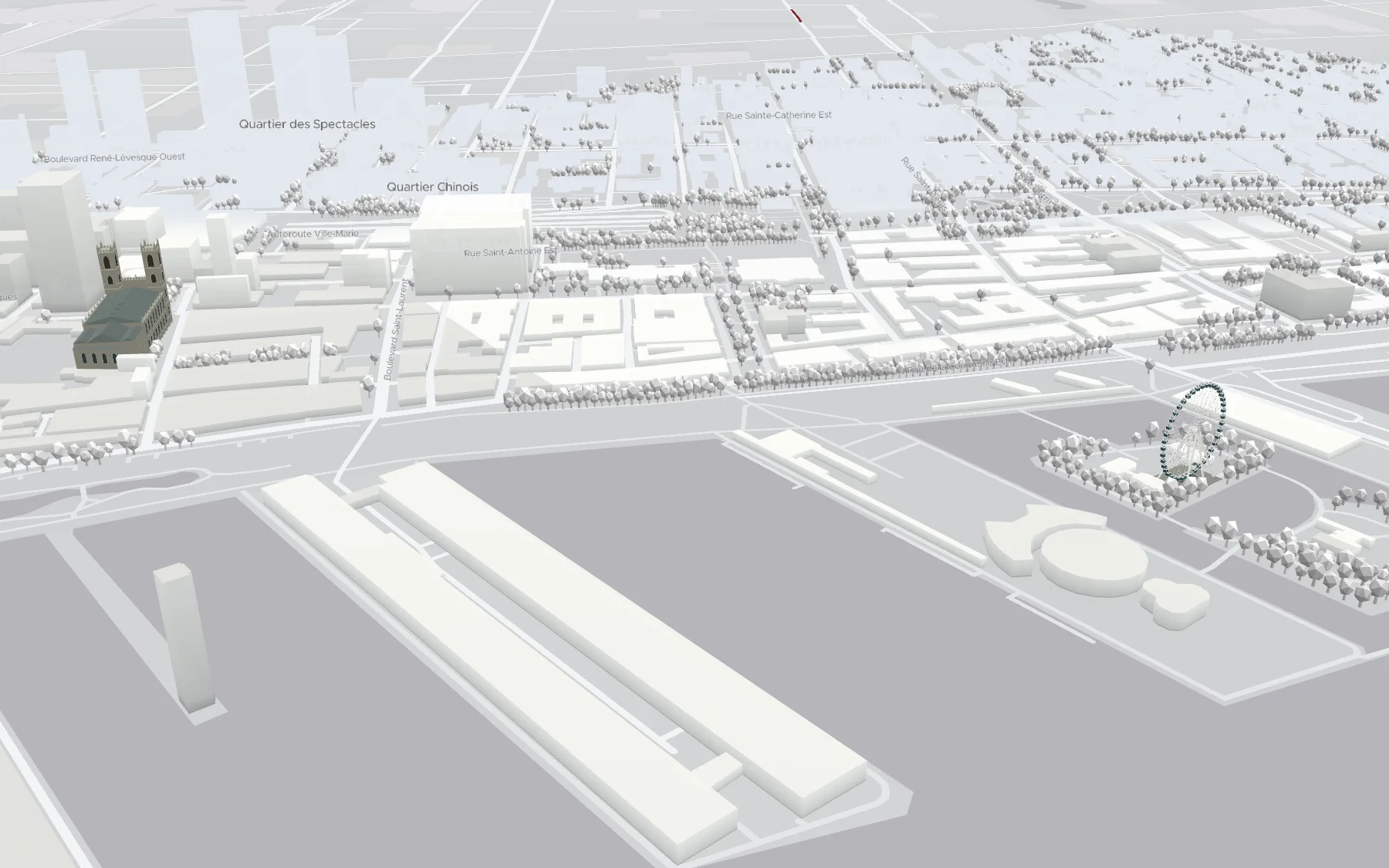
Tilt and cityscape now run on Peregrine, a renderer we wrote for the car instead of a general-purpose web map. The old one rebuilt the world every frame — on a nav view, that is every frame of your drive. The new one builds each piece of road, ground and building once and then leaves it alone. The map holds its frame rate at speed, and it holds it best on the cars that needed it most.

Street names that stay the right way up

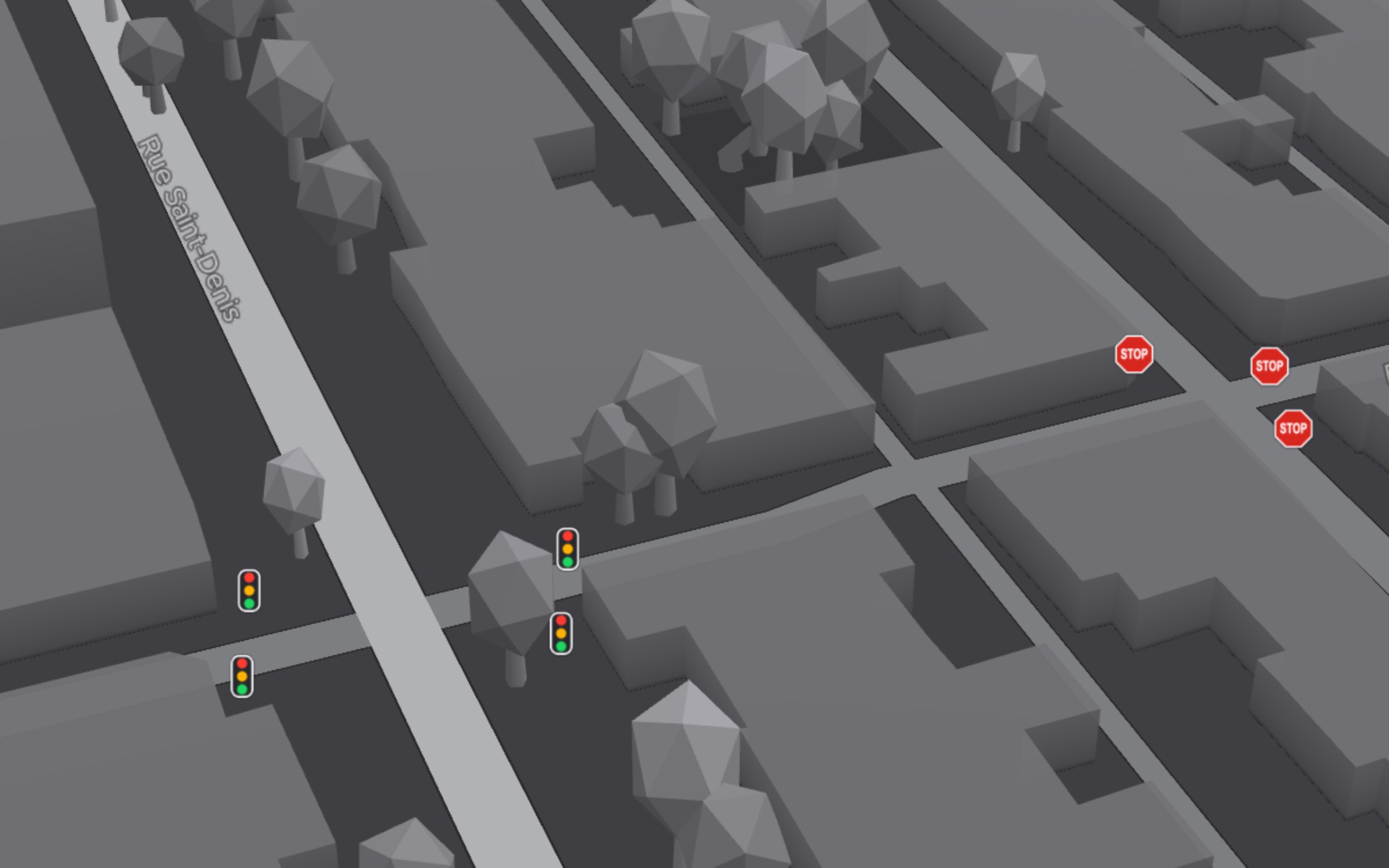
Labels used to be part of the map imagery, so on a heading-up map they spent half of every drive upside-down. Street and place names are now drawn separately: upright at any bearing, angled along the road they name, with a halo so a name stays readable over a bright road or a dark park. No cafe names, no clutter — just the roads you need to read at speed.

No more blank map when you zoom

Crossing a zoom threshold used to blank the map for a moment while it rebuilt. Detail levels now cross-fade into each other, so zooming and the automatic speed-linked zoom are both continuous. Road closures and traffic no longer shimmer while you pan, either.

The map takes its colours from your car

The 3D basemap now follows the car's own day/night theme rather than approximating it, so codriver sits next to Tesla's map instead of arguing with it.

A cleaner route line

The route keeps a fixed width on the ground rather than on screen, so it reads like a lane on the road instead of a stripe pasted over it — it narrows into the distance the way the road does. Buildings pass in front of it where they should.

Your car

Alpha

Your actual Tesla, instead of the arrow

Premium. Settings → View → Your car replaces the position arrow with your car — twelve vehicles, in your paint and on your wheels, lit and reflective, headlights on with the dark theme. It drives off the same position and heading the arrow did. One car downloads, only after you switch the feature on, and only the one you picked.

Reports

Vote on any pin

Thumbs up and thumbs down now appear on every incident on the map, not just the ones other codriver drivers reported. If you drive past a jam that cleared an hour ago, you can say so. The buttons speak the pin's language: a jam is "Still slow / Clear now", a closure "Still closed / Open now".

One thumbs-down actually counts

A single dispute on a pin nobody has confirmed now hides it for everyone for the next half hour to two hours — and any confirmation brings it straight back. Before this, one driver's correction was mathematically a no-op, which is a poor answer to someone who took the trouble. Votes have to come from within 2 km of the pin.

Reports were always visible immediately

Our own pages used to claim a report sat invisible until three other drivers confirmed it. That was never how it worked — a report is shown to every driver in range the moment you post it. The pages now say so. If you read the old version and concluded reporting was pointless where you live, it wasn't. Sorry about that.

Account

Drive without an account

The map, alerts, cameras and Superchargers now open without signing in — pair when you want the rest. Guests see Tesla charging only; an account adds the other networks, routing and reporting.

Sign in with Tesla

Tesla is now a sign-in option. Signing in that way lands you with your account already linked and your garage already filled in — the right car, the right year, the right paint, no typing.

Your garage in 3D

Every car in your garage is now a real 3D model you can turn around, not a flat press photo. Cards show whether a car came from Tesla or you built it by hand, and you can edit a car in place instead of deleting it and starting over.

A configurator that describes actual cars

Year, model, version, trim, colour, wheels, wrap and interior — eight questions instead of one overloaded "trim" dropdown that made whole bodies unreachable. Every paint and every wheel that fits your body is now offered, plus 290 official Tesla wraps.

Which car is this screen in?

The Tesla's browser can't take typed input, so pairing now asks the question on your phone instead: which car is this screen in? The answer links the screen to the right car in your garage.

Don't type the address twice

Set a destination in the Tesla's own navigation and codriver picks it up at start-up and routes there itself — "Your Tesla “Bumblebee” has a destination set: Mont-Tremblant — routing there automatically", with a Cancel button, because routing you didn't ask for should always have an undo. Needs your Tesla account linked at codriver.io/account. If the car is asleep or has no route set, nothing happens.

Interface

A tidier windscreen

The HUD was rearranged around what you look at while driving: maneuver banner top-centre, speed and limit top-left, camera controls top-right, and one bottom band with the ETA on the left and the actions on the right. Tilt and zoom are steppers now, so you can set them exactly without pinching at speed. The compass gets a north-lock badge.

UI size, 1 to 10

Settings → View → UI size replaces the old two-step compensation for Tesla's summer firmware. Level 10 is your car's native size; level 1 is the density codriver had before the firmware change; every step in between is real. It applies as you drag, with no reload.

Easter eggs

Rainbow road

Premium. It has been in Settings for a while and it never worked — the switch was wired to nothing. It works now. That is the whole entry.

Planes overhead. Real speed everywhere.

Planes overhead. Real speed everywhere.

Live air traffic joins the map, the speedometer stops lying on older cars, and first-run units match your side of the border.

Map

Airplanes overhead

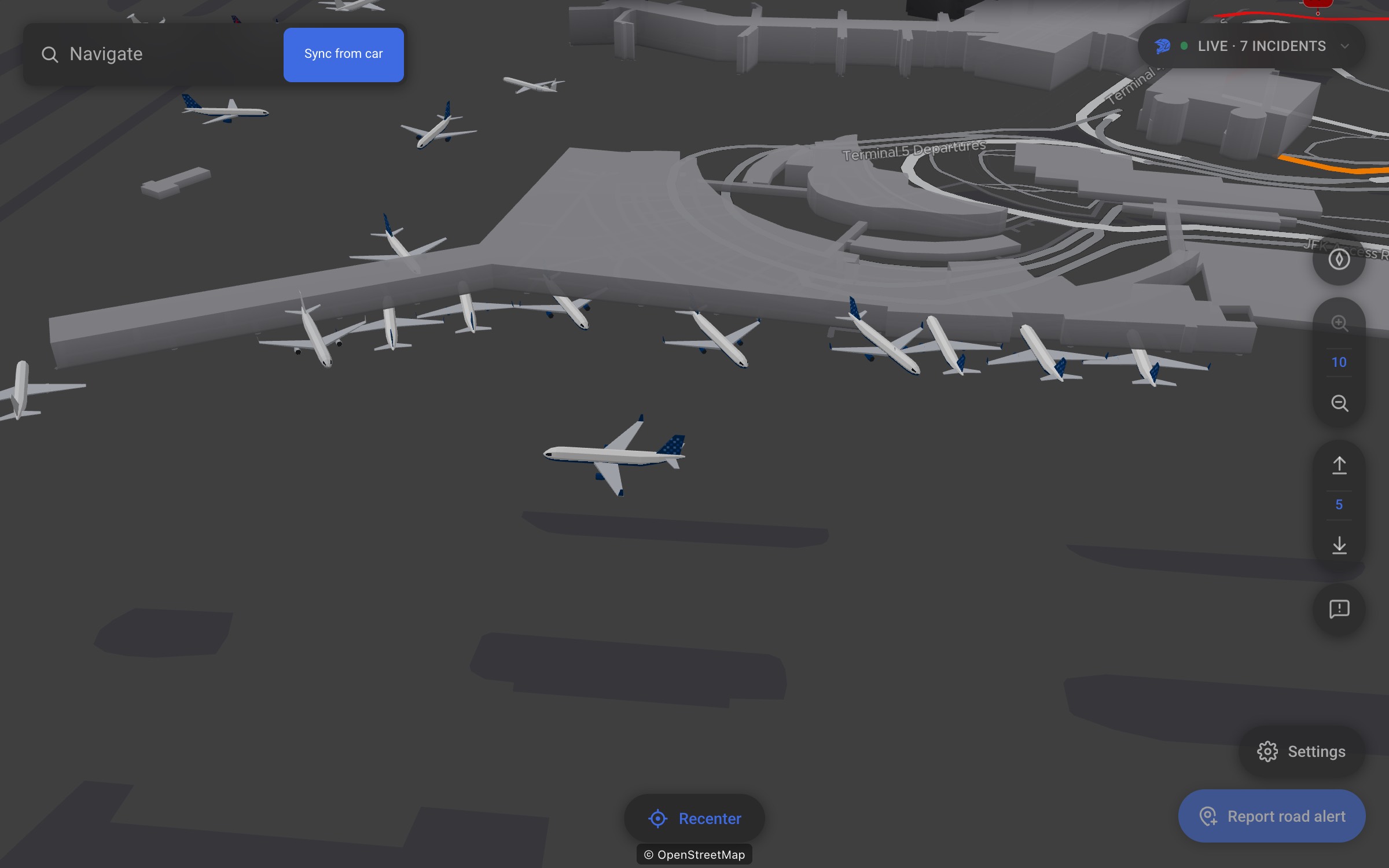
Live air traffic on the map. Tap a plane for flight number, airline, route, altitude and speed. In the 3D views planes render as actual 3D models that point where they fly — measured to half a degree; older car computers keep a lighter flat glyph. Off by default: flip it on in Settings.

Fixes

Speed readout on older computers

Some cars — the pre-2022 computer in particular — report zero speed to the browser even while moving. The speedometer now measures speed from GPS movement itself, so the pill reads true speed everywhere. Speed-linked behavior (zoom, alert look-ahead) un-degrades with it.

Settings

Right units out of the box

First run now picks mph or miles from the car's region — US and UK get imperial, everyone else stays metric, and Toronto is not Detroit. A toast tells you when it happens; your choice in Settings always wins.

Absorbing the summer Tesla update.

Absorbing the summer Tesla update.

Tesla's summer-2026 firmware quietly changed the in-car browser — a new pixel density and a dropped Tesla marker. Here's everything we fixed so codriver looks and works right on the updated car, plus two reliability fixes from the field.

Display

Right-sized again

The summer-2026 firmware (Chromium 148) changed the browser's pixel density, which made codriver's whole interface render oversized on the car. We now compensate so buttons, panels and text return to their previous physical size. Prefer the newer, larger native scale? Settings → UI size → Large. The row only appears on affected cars.

Map pins and zoom, corrected too

The same density change left map pins looking bigger and the map zoomed in tighter than before. Pins are back to their normal size, and a given zoom level shows the same amount of road it used to.

Your car recognized again

The update also dropped the Tesla marker the browser used to send and changed the reported screen size, so updated cars were being misread — some Cybertrucks and older-computer cars fell into the wrong bucket. Detection now works off the physical screen size and the in-car graphics chip, so your car — and the right map-quality defaults for it — are correct again.

Map

The route always draws

Fixed a bug where the route line could silently fail to appear — most often after the browser reloaded mid-drive, or when switching between 2D and 3D views. The route, your position puck and alerts now repaint reliably after any view or theme change.

Navigation

Readable turn banner in split-screen

In a narrow or split browser pane, the maneuver instruction could wrap one word per line into a tall tower. It now keeps a readable minimum width.

Pairing

No more reload loop after pairing

A field issue could leave the car's browser reloading over and over right after pairing. We've capped auth-triggered reloads: the worst case is now a stable re-pair screen instead of a stuck browser.

Turn-by-turn lands. In alpha, with its eyes open.

Turn-by-turn lands. In alpha, with its eyes open.

The biggest drop since launch: guidance that calls the road, a police alert with its own switch, and rain on the map.

Navigation

Alpha

Turn-by-turn guidance

Set a destination; codriver routes you with live traffic and calls the road — maneuver banner, lane arrows, roundabout exit counts, distance countdown, live ETA. It's marked ALPHA because instructions can be wrong. Keep the Tesla's own navigation running in the background; if an instruction disagrees with the road, believe the road.

Voice, on a car that can't speak

The Tesla browser has no voice engine, so we bundled our own turn calls — left, right, per-exit roundabout phrases, merge, exit, arrive — with a chime as last resort. Off by default while alpha: Settings → Guidance sound.

Faster-route prompts

Traffic is re-checked every few minutes. When another route saves ~2 minutes or more: one toast, one tap, switched. Never automatic.

Route alternatives, mid-drive

A new button re-picks your route from wherever you are now.

Drive resume

If the browser reloads mid-drive, the route comes back on its own — with a Cancel if you're done.

Tunnels and dead zones

When GPS drops, the countdown keeps running along the route (“GPS weak — estimating”) instead of freezing, for up to two minutes. Estimates never trigger a reroute.

Snap to road

The position puck rides the route centerline instead of wobbling with GPS scatter.

Tesla hand-off

Destination already set on the car's nav? codriver adopts it at boot. Type it once.

Posted speed limit

The limit of the road you're on, next to your speed. White SPEED LIMIT plate in North America, red ring everywhere else.

Alerts

Police ahead

Red/blue lightbar flash plus a sound for a police report ahead in your direction of travel — checked against your route corridor while navigating, a forward cone in free drive. Fires once per report. It has its own switch (Settings → Alert sounds), on by default and independent of guidance audio: muting the turn calls doesn't mute the police call.

Map

Rain radar

Live precipitation overlay. Settings → Sources → Rain radar, off by default.

Tesla-matched basemap

Map palette matched to the Tesla UI, day and night. Free-flow traffic noise removed, roads properly cased.

Track by default

New installs boot into Track — 2D, follows the car, the smoothest view on every screen. Compass, Tilt and Cityscape are still one tap away in Settings.

Cleaner controls

Recenter now appears only when you've moved the map off the car — and it's labeled, so it says what it does. Sharper icons on the report and route buttons.

Kinder to the older computer

Cars on the pre-2022 media computer (MCU2) now boot into Track at full resolution. The 3D views are more than that chip can handle — picking Tilt or Cityscape warns you first instead of letting the browser fall over. You can still proceed; it's your car.

Settings

Two sound switches

Guidance sound (Voice / Chime / Off) and Alert sounds are now separate settings.